***Please use incognito mode for this step of the process. We need to use incognito mode for all forms to prevent the browser from saving and auto-filling previously entered data. Since these forms are used multiple times, cached information could lead to incorrect or duplicated entries. Using incognito mode ensures that each submission starts with a clean session and accurate data input.***
On your contact page, find the section First Talk and then the property Link to Video AE Configurator in the left sidebar. (See screenshot below) Then click on the arrow to open this form in a new tab. 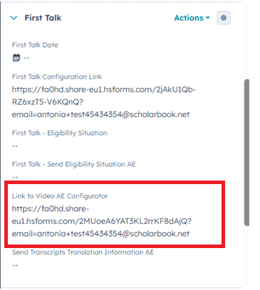
In the form please make sure to fill in the link to the Dropbox Folder and adjust the text so that it fits for your client.
The text will be different based on the sport of your client. For Basketball and Soccer it will also show the link to the scene descriptions.
When you are done with the first page click Next. 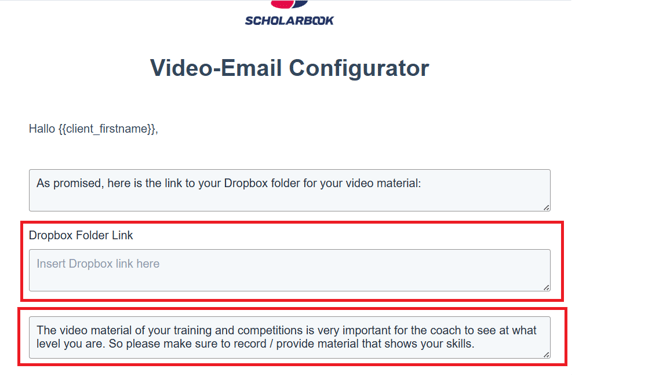
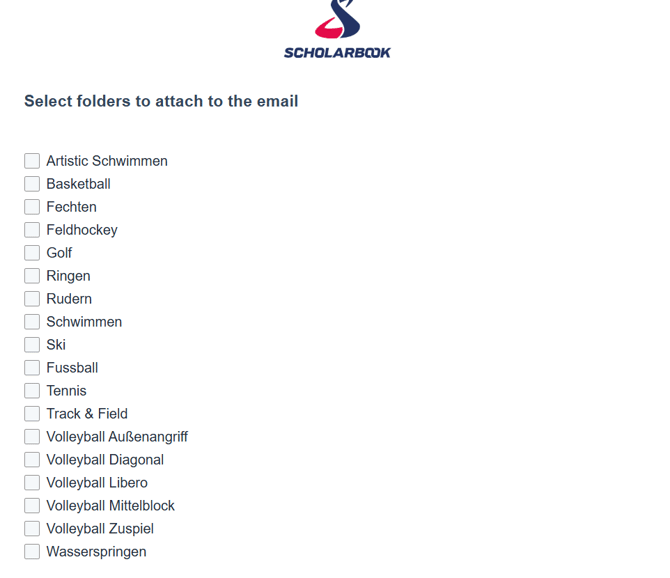
On the second page please select all attachments that you want to add to the AE for your client and then click Submit. This will trigger the AE to your client.